 Deepak Kumar
If you've worked with Google's tagging tools for a while, you know the awkward part. GTM and Google Tag did almost the same job, but neither could do everything the other could. A Google Tag was really a small GTM container wearing a disguise, yet a real GTM container couldn't behave like a Google Tag. We all just worked around it.
That gap is now closed. Google calls the fix the optimized tagging experience, and it's one of the biggest changes to GTM in years. This guide explains what it is, what the upgrade wizard actually does, and what I'd check before touching a live container.
What is the optimized tagging experience in Google Tag Manager?
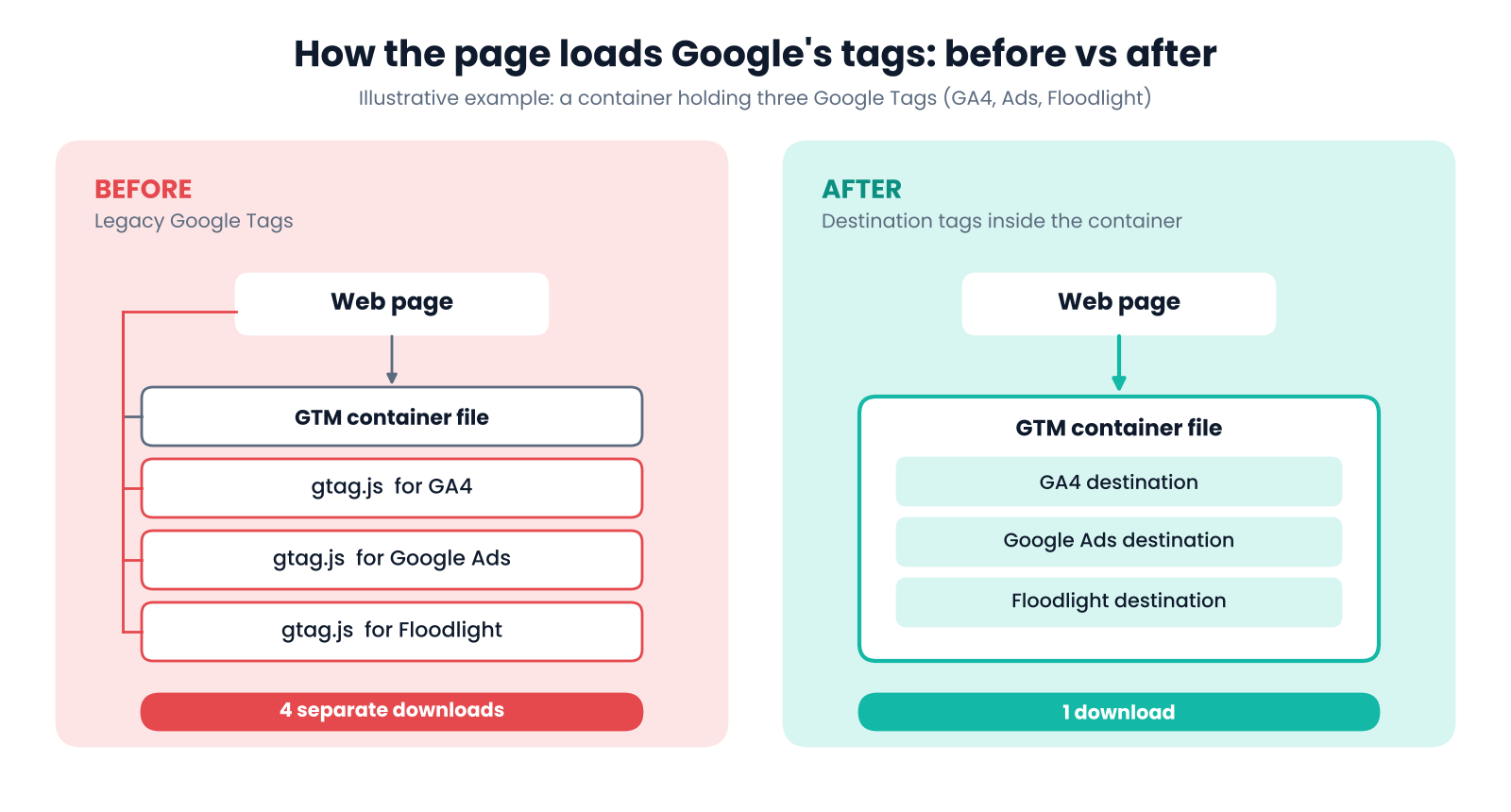
In plain terms, your GTM container can now do everything a Google Tag does. Products like GA4, Google Ads and Floodlight attach to the container as destinations. They follow one central set of settings that you manage inside GTM, and the container is linked to the Google Tag behind each product.
Google also added new tag types, called Destination tags. They start data collection for a product without triggering an extra gtag.js request. They use the shared settings, still let you override individual fields, and are consent-aware like every other Google tag type.
Why does this update matter?
Four reasons stand out.
- Faster pages. Every legacy Google Tag meant another JavaScript file for the browser to fetch. Destinations are now just configuration inside the GTM file, so there's one download instead of several. For many sites, this alone justifies the upgrade.
- One set of rules. Automatic event detection, data collection and consent defaults live in one place, so you stop keeping several products in sync by hand.
- Real change control. Settings are now container resources. They get version history, show up as workspace changes, and only go live when you publish.
- A shared roadmap. For years Google has put more energy into Google Tag than into GTM. With the two merged, an improvement to one should reach the other. Worth hoping GTM gets its pace back.
What are destinations and shared settings?
A quick way to picture it: the Google Tag is the house rule sheet, and each product is a guest. The sheet decides what's possible, such as which events are detected automatically, whether first-party data collection is allowed, and whether consent defaults can be overridden. Guests follow those rules by default. A guest can ask for a stricter rule for themselves, but never a looser one.
Here's a concrete case. If the container blocks user-provided data collection, a Google Ads destination can't switch it back on. If the container allows it, the Google Ads destination is free to turn it off for itself.
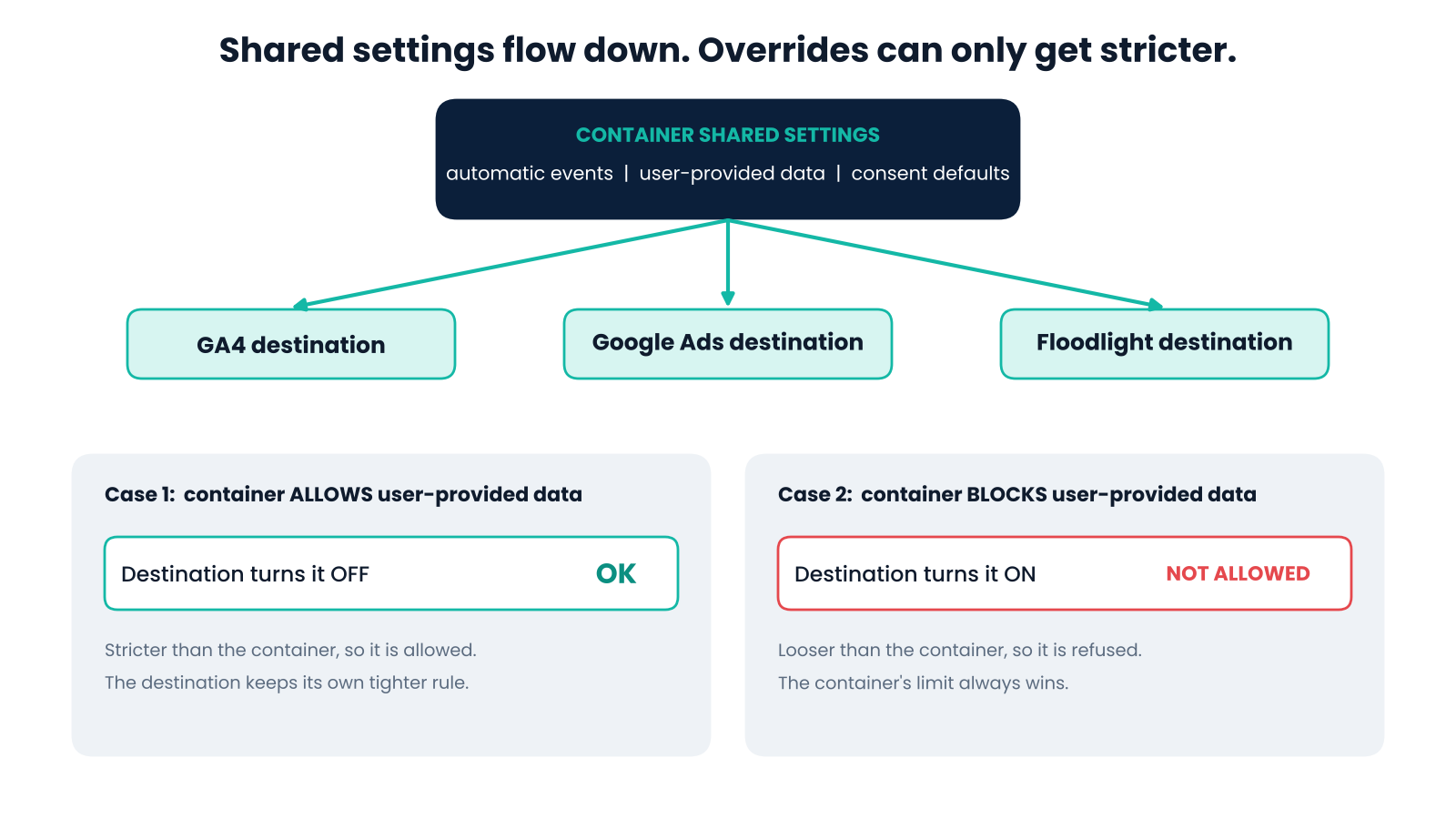
In the new setup, that rule sheet lives in the container's Settings area. Add a destination and it inherits everything. If one product needs a tighter rule, you set it in that product's Destination tag.
How do you upgrade a GTM container to the new tagging experience?
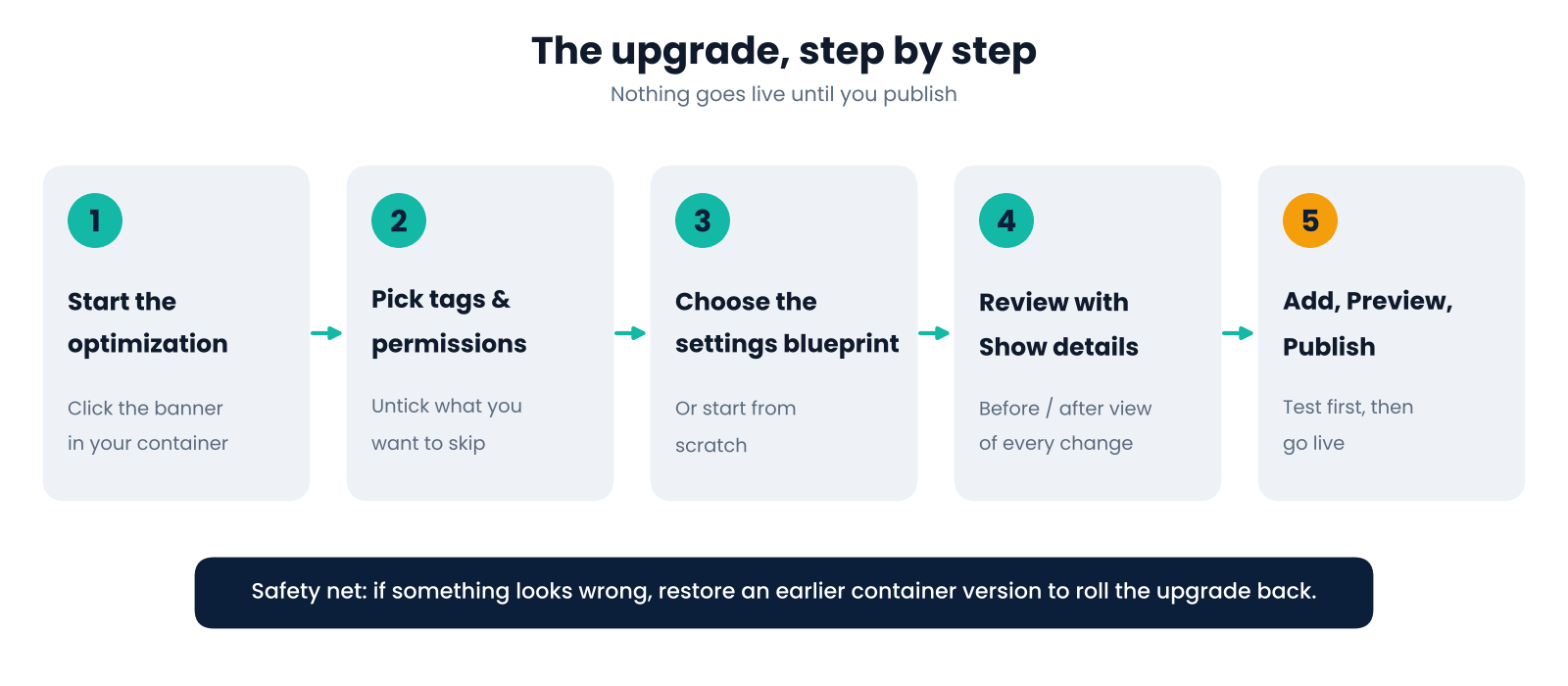
Containers created before the release show a banner inviting you to start the optimization. The wizard is simple, but the choices inside it matter.
Step 1: Pick which tags to link
An overlay lists every Google Tag in the container that you have access to. Untick the ones you want to leave alone. They'll stay as legacy Google Tags and won't get any of the new benefits.
For each tag you also decide whether people who already have access to that Google Tag should get Read access to the container. I'd usually say yes. Having access to the Google Tag but not to the place where it's deployed makes troubleshooting painful. You can change it later. The View settings link lets you inspect each tag's configuration, which is worth doing before the next step.
Step 2: Choose the settings blueprint
If all your tags have identical settings, there's nothing to decide. If they differ, you pick which tag's settings become the container's shared settings. Or you can import nothing and build the shared settings from scratch.
Step 3: Read Show details before you commit
Click Show details before Add to workspace. It lays out every change the wizard is about to make: the new Setting resources, the linked Google Tags flagged as Modified (they become Destination tags), and any permission changes.
There's also a Before and After toggle. Imagine a container with three Google Tags: two for GA4 and one for Floodlight that you can't access. After the optimization, the two GA4 tags become direct destinations of the container, while the Floodlight one stays as a standalone Google Tag.
Step 4: Add to workspace, test, publish
What are the new Destination tag types?
There are three: Google Analytics, Google Ads and Google Floodlight. The old Google Tag and the Conversion Linker are now considered legacy. The Destination tags handle the work the linker used to do.
Google has changed this approach a few times over the years: event tags, then the Configuration tag, then the Google Tag, and now Destination tags. This one finally removes the extra file load.
| Legacy Google Tag | Destination tag | |
|---|---|---|
| Extra gtag.js request | Yes | No, it's all in the GTM library |
| Settings | Configured in the Google Tag itself | Uses the container's shared settings |
| Override individual fields | Yes | Yes, to a stricter state |
| Consent-aware | Yes | Yes |
| Conversion Linker needed | Yes | No, it's legacy now |
| Status | Legacy, avoid for new work | Recommended |
You might wonder why Google doesn't just convert every legacy tag for you. The reason is the shared settings. A Destination tag picks up whatever the container says, so a tag whose old configuration differs could quietly change how data is collected, with consequences for data quality and compliance. That's why the wizard asks you to review first.
Where do the settings live now?
Open Settings in the container navigation and you'll see the shared settings that apply to every Destination tag in the container. The Add destination button lists the Google Tag destinations you have admin access to, so linking another one takes a couple of clicks.
Because these settings are container resources, a change is just another workspace change. You can preview it, test it and publish it with the rest of the container. Very handy.
Legacy Google Tags still appear in the list, but marked as not optimized and without an external account link. That link matters. Without it, the people who use that destination have no visibility into the GTM container that now controls their settings.
What is "Manage data transmission settings"?
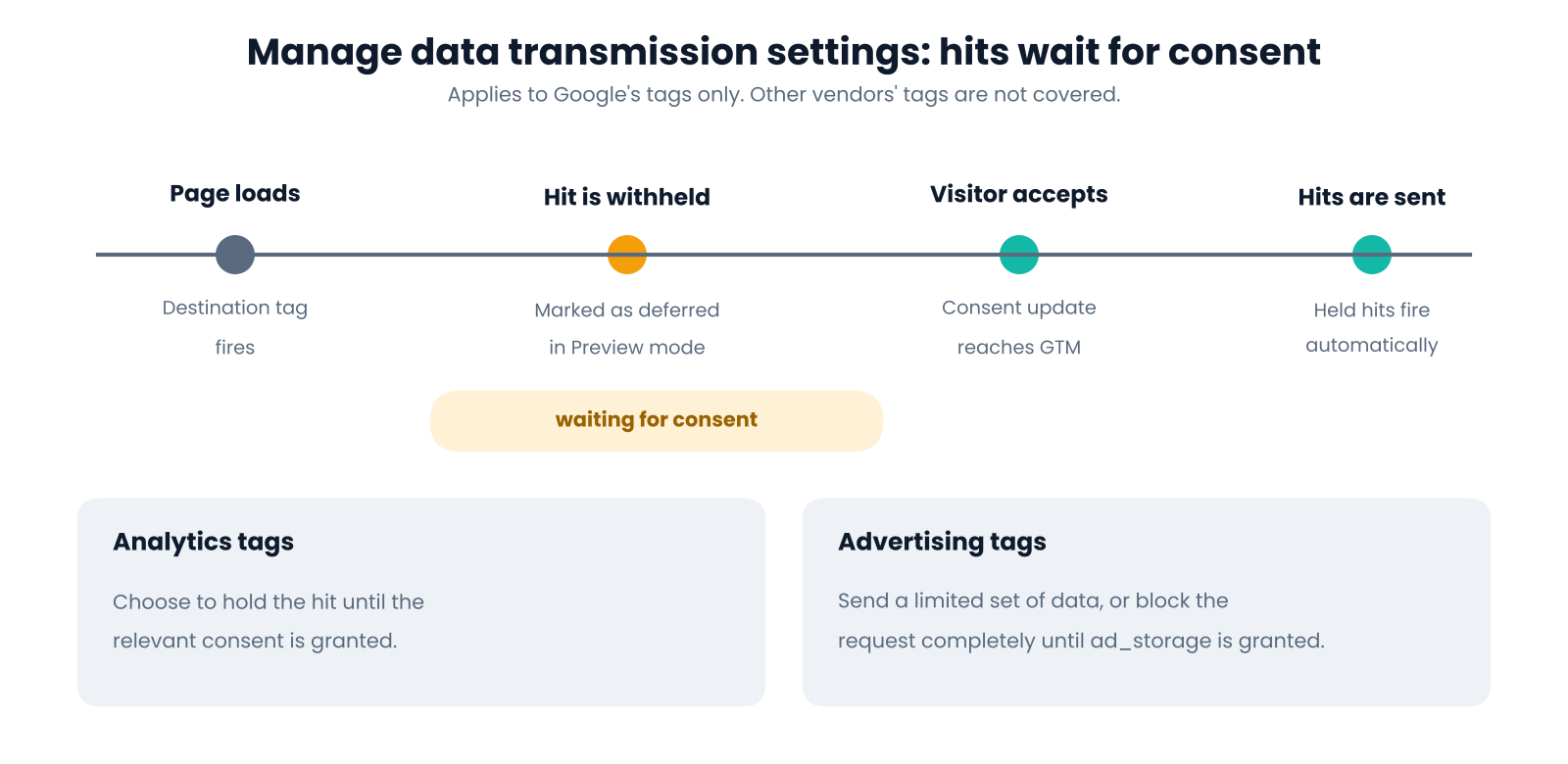
This setting lets the container hold back hits automatically when the relevant consent hasn't been granted, then send them once consent arrives. Think of it as Basic Consent Mode behaviour layered on top of Advanced Consent Mode.
Why it's interesting: queueing blocked events and replaying them after consent is one of the fiddliest parts of a Basic Consent Mode setup. Here GTM does it for you. Analytics tags can be held until consent is given. Advertising tags get finer control: send a limited set of data, or block the request completely until ad_storage is granted.
How do permissions work between GTM and Google Tag?
By default, people with access to a Google Tag get Read access to the GTM container once that tag is linked as a destination. You can adjust this in Admin, under External account links in the container settings.
It doesn't work in reverse. People who manage the GTM container don't automatically get access to the linked Google Tags.
The logic is transparency. If a Google Tag owner can't see the container, they may wonder why the settings they configured aren't being respected. Seeing the container explains it.
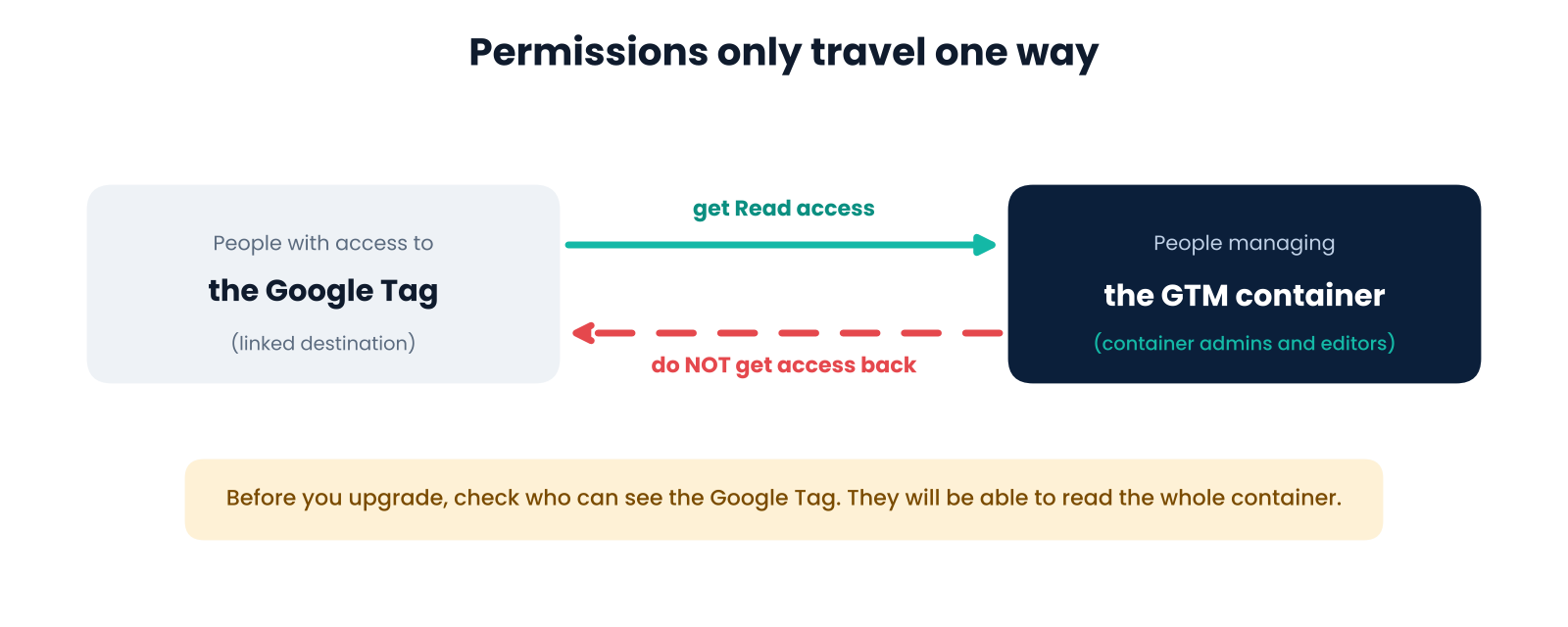
One practical warning: audit who has access to each Google Tag before you run the wizard. Read access means they can see everything in the container, and you don't want to expose it to someone by accident. A finer permission model, perhaps one that only reveals tag settings, would be a welcome future improvement.
What changes in the GTM interface?
Container overview
The Overview page now draws a diagram of the Google products attached to the container. Legacy Google Tags appear as an extra hop before the destination. The number beside each destination shows how many tags reference it, and clicking it opens Destination details with the full list. It's a fast way to understand how data flows out of the container.
Preview mode
- Deferred hit icon: shows a hit being held back because consent hasn't been granted. It's a handy visual check that Manage data transmission is doing its job.
- Hits sent tab: because GTM now behaves as a Google Tag, the hits sent appear right inside GTM's preview. If you see a delay warning, it just means GTM processed the trigger event before the destination had loaded.
- Settings: when a Destination tag fires, Preview shows which settings were activated, and you can click one to see how it was configured.
Time will tell whether this consolidated view gets crowded in containers with a lot of destinations.
What's still missing?
There's no warning when a destination's own configuration clashes with the container's shared settings. Say a destination was set to disallow user-provided data, but the container allows it. Since the container wins, that could cause trouble, and nothing tells you.
Container admins can't see a Google Tag's private settings, so a perfect fix is tricky. Even a simple flag saying "something differs between these two" would be enough to prompt an investigation. Until Google adds something like that, compare settings by hand during the upgrade.
A practical checklist before you upgrade
- List every Google Tag in the container and note which ones you can access.
- Open each tag's settings and write down the differences: automatic events, user-provided data, consent defaults.
- Decide which tag's settings become the baseline, or whether you'd rather start fresh.
- Audit who has access to each Google Tag, since they'll receive Read access to the container.
- Publish a clean version first, so rollback is a single click.
- Run the wizard, read Show details, then Add to workspace.
- Test in Preview: check Hits sent, activated Settings and, if you use consent, deferred hits.
- Publish, then watch your reports for a few days for unexpected shifts in event volumes.
If you have many destinations with competing settings, treat this as a proper migration. Add them one at a time, test each, and roll back if you need to.
Should you upgrade now?
My view: yes, for most setups. If you have a GA4 property and a Google Ads account in one container, the risk is low and the page performance gain is real. If you manage many destinations with different settings, go slower and stage it. Either way, plan to move off the legacy Google Tag and Conversion Linker, because that's clearly where Google is heading.
The bigger story is that Google is finally ending the overlap between GTM and Google Tag. That should be good news for anyone who runs tracking for a living.
Need a second pair of eyes?
If you'd like someone to review your container before you upgrade, or you manage tracking across several brands and want a safe rollout plan, get in touch via my contact page.
Sources and further reading
- Google Tag Manager Help: the official article on upgrading to the new tagging experience.